
Working with Colour Profiles can be confusing at first. There are many similar terms that are being used interchangeably. In this post I will once and for all explain what is what.
Assign / attach / tag



The act of pairing an image file with a Colour Profile. Usually happens when you are trying to save an image using “Save as…”, but can also be done during image editing. Assigning a profile can change the appearance of an image, but it doesn’t modify any of the colour values. The yellow squares above all have the same RGB values:
R: 224
G: 184
B: 0
Each looks different because each has a different ICC profile attached. If they look exactly the same to you, your internet browser probably doesn't support Colour Management!
The image appearance won’t change if the assigned profile is the same as the assumed profile. Which brings us to the next term - assume!
Assume


As opposed to the assigning, assuming a Colour Profile doesn’t add the ICC profile to the image file. Assuming a profile means treating the image as if it had that Colour Profile already assigned. Assuming a profile also leaves the colour values in tact.
But Karol, isn’t that like, almost the same thing? - Well, yes, the difference is subtle, but it’s very important to be aware of it.
Whenever you view an untagged image (often marked as DeviceRGB) in a colour managed environment, a certain colour profile is assumed, but only temporarily.
Colour managed applications / operating systems allow you to select default assumed profiles. At the very least you can choose one RGB and one CMYK profile (You cannot assume a RGB profile for a CMYK image and vice-versa). Some applications also allow you to select a different profile for raster and vector images.
Convert
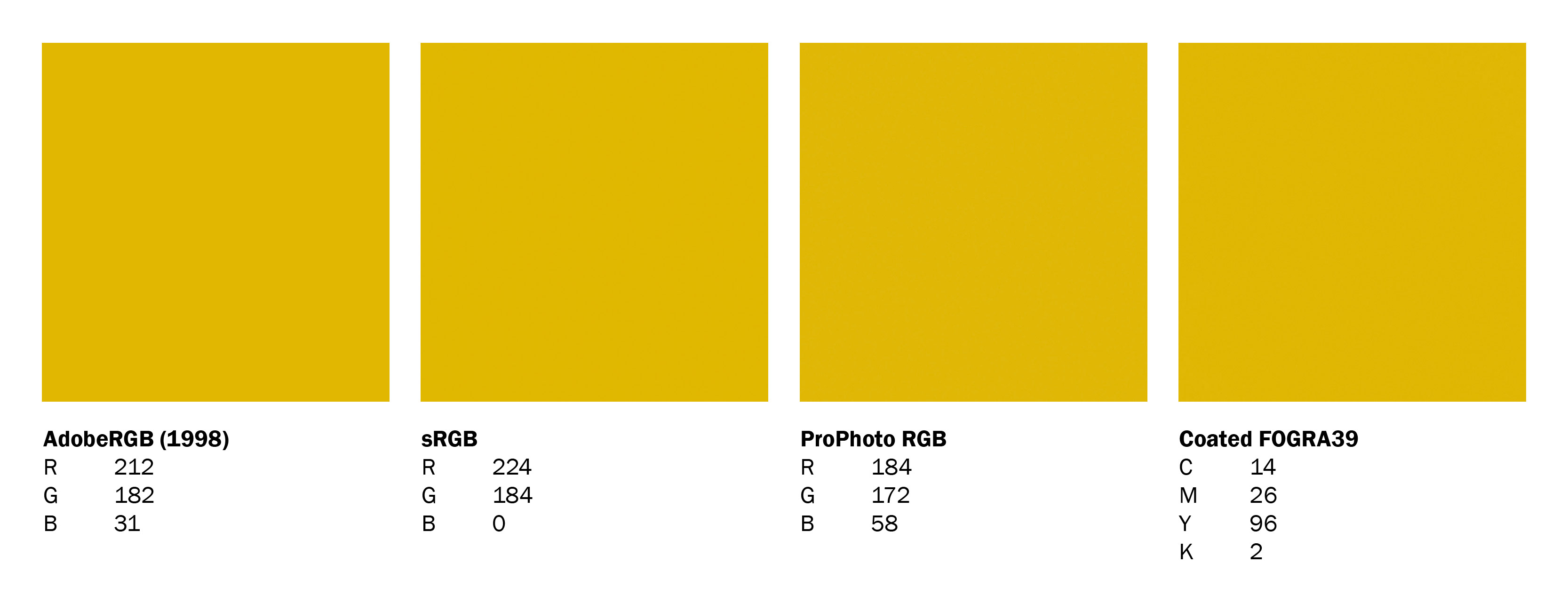
Unlike assign and assume, which don’t modify colour values in the image, convert does modify the colour values in order to maintain the colour appearance in the target colour profile. It is also possible to convert an image into a different colour space (RGB, CMYK, LAB). There are many things to consider while converting an image, but I don’t want to overwhelm you with too much information.
I will write a separate post on converting images. In the meanwhile, if you have any questions, leave them in the comments down below.
No Comments.